Viewing Jobs
As a logged-on user, you can view the progress of Jobs, especially the Job you just triggered in the System Jobs screen. This screen is available by clicking the icon (as marked in the image) from the left menu.
Users can view different Job types such as Data Set Jobs, Catalog Jobs, Project jobs etc. depending on whether they are in Classify or Resolve. Some Jobs such as Data Set Jobs and Data Quality Jobs are common to both.
What can the User observe from a Job?
The user can get lot of useful information from the various Job tabs such as:
-
Date and Time when the Job has been triggered.
-
What Stage is it in?
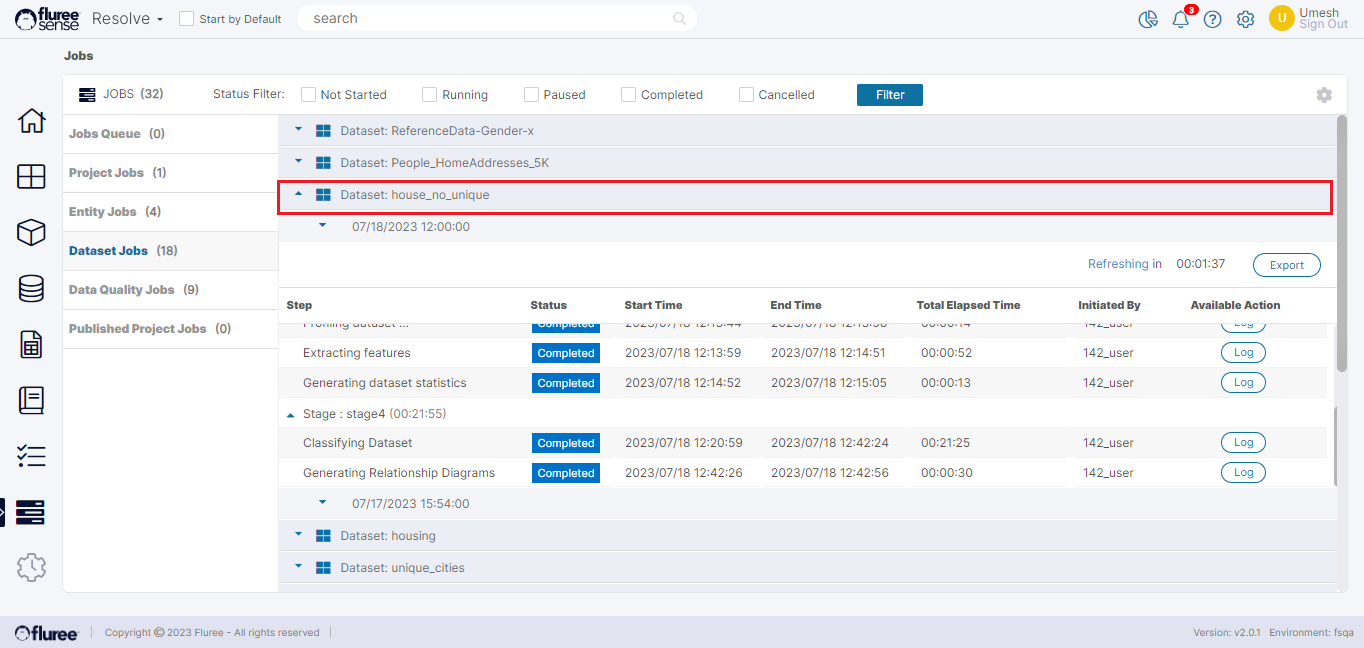
Each Job goes through multiple stages with relevant names such as profiling, classifying, clustering etc. In some jobs such as Data Set Registration, we have an advanced update mechanism by which the aspects of Data Set registration/ Re-profiling which have completed get updated as and when that stage is passed – rather than waiting for the full job completion.
Example: In the Data Set Detail screen, The Data Set’s profile and Sample information will be updated and visible before Data Quality Rules, or ER diagram etc. have been generated for it. The image below shows a Data Set Job opened by that job’s name showing the various stages it has completed / yet to start.
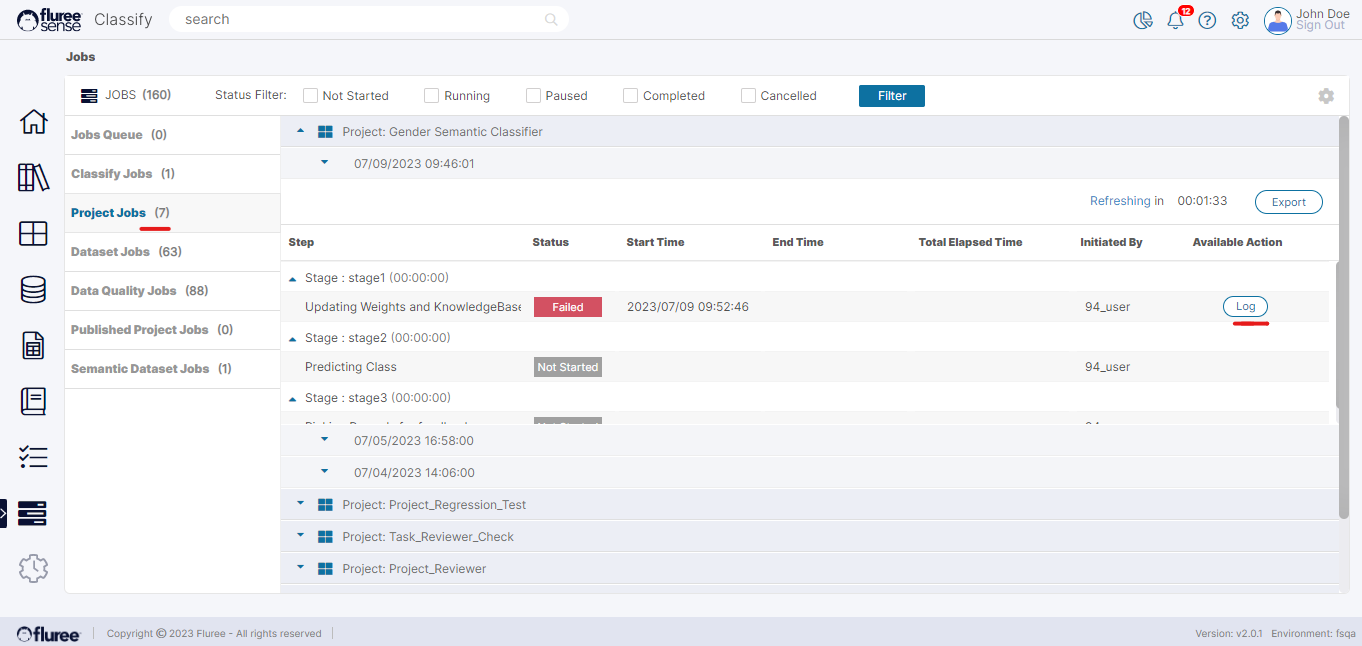
- Whether the Job has completed successfully or failed due to an error. Clicking on the Log button may provide more details of such an error. An example can be seen below.
-
A Job’s Status gets refreshed every few seconds to provide the current information.
-
A user may also want to filter to a specific status of the Job through the filter on the top - as can be seen in the image above. For example: You may want to see which all jobs that you ran today have not yet started.
Useful Note: It is also important to note that a Job does not immediately begin processing when triggered, it is first queued up for processing in ‘Job Queue’ tab and taken up as memory etc. becomes available.